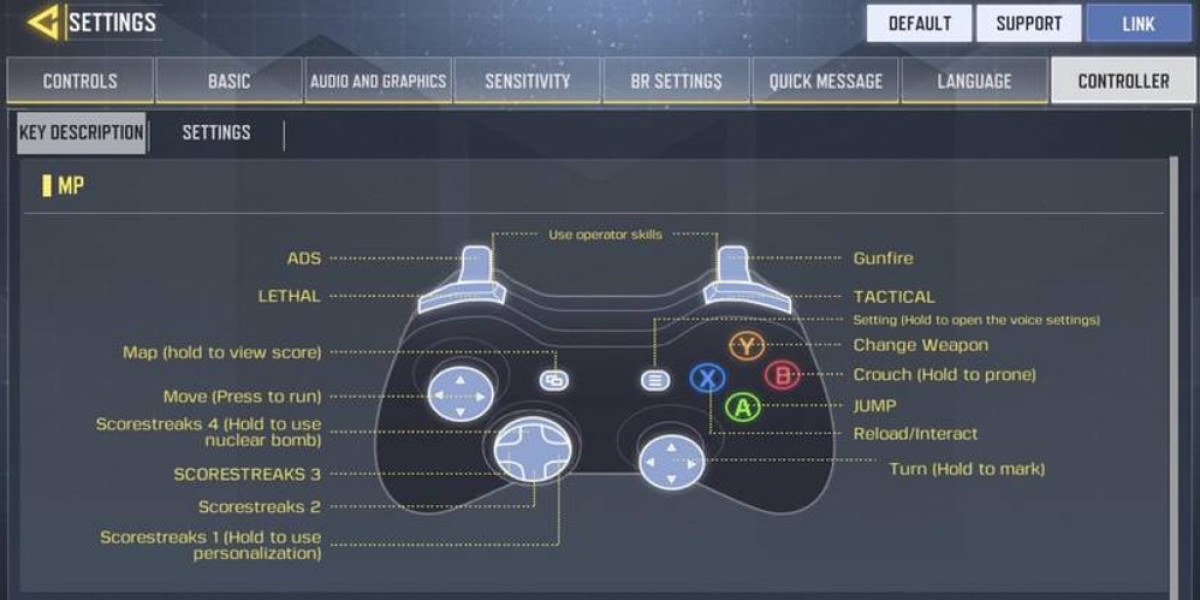

The latest update for Call of Duty: Mobile introduces exciting controller compatibility for both Android and iOS users, enhancing gameplay experience especially with the new "Zombies" mode. To utilize a controller, players need to activate the controller settings within the game and connect their wireless controllers manually, which involves specific pairing procedures depending on the controller type and device.
Before starting, ensure Bluetooth is enabled on your device. For PlayStation 4 controllers, initiate pairing by pressing and holding the central "PS" button along with the "Share" button located to the left of the touchpad. The controller's light will flash, indicating it's in pairing mode. Next, go to your device's Bluetooth settings, locate "Device Connectivity," and select the DualShock 4 from the list of available devices to complete the pairing process. Note that only second-generation or newer DualShock 4 controllers are supported, so verify your controller version before attempting to connect.
For Xbox controllers, power on the device by pressing the Xbox button. Then, activate pairing mode by pressing the dedicated "Pairing" button on the top of the controller, positioned to the left of the charging port. On your device, navigate to Bluetooth settings, find "Device Connectivity," and select the Xbox controller from the list of available devices. Similar to the DualShock 4, only second-generation or newer Xbox controllers are compatible; first-generation models are not supported.
It's important to remember that controller functionality is limited to gameplay during matches—they cannot be used to navigate menus. Compatibility updates specify that only the latest versions of official controllers are supported, so double-check your hardware before connecting. For players seeking alternative input methods, using a mouse and keyboard is also an option in Call of Duty: Mobile.
Having a controller can significantly improve your experience during intense zombie battles, offering more precise control than standard mobile touch controls. Retailers are currently offering discounts on Xbox controllers in anticipation of Black Friday, making it a good time to upgrade your gaming setup.
To connect a PlayStation 4 controller to your device, ensure that your iOS system is updated to at least version 13, as earlier versions do not support this feature. Begin by activating pairing mode on your DualShock 4 controller. To do this, press and hold the "PS" button along with the "Share" button simultaneously until the controller's light bar starts flashing rapidly. This indicates it is in pairing mode.
Next, navigate to the Bluetooth settings on your iPhone or iPad. In this menu, you will see a list of nearby Bluetooth devices. Look for "DualShock 4" or a similar identifier. Tap on it to establish the connection. Once paired, the light on the controller will stabilize, confirming a successful connection. This process mirrors how the controller connects with other iOS features like Apple Arcade.
For Xbox One controllers, the process is similar but with some hardware differences. First, verify that the controller is powered on—check if the Xbox logo is lit. If it’s off, press the Xbox button to turn it on. To enter pairing mode, press and hold the dedicated "Pair" button located on the top of the controller near the left bumper. Hold it until the Xbox logo begins flashing, indicating it's searching for a device.
Then, open the Bluetooth settings on your device and look for "Xbox Wireless Controller" in the list of available devices. Select it to pair. Once connected, the Xbox button will remain lit, confirming the successful pairing.
Choosing between a PS4 and an Xbox One controller depends largely on personal preference. Some players favor the symmetrical analog stick layout of the DualShock 4, which offers a balanced feel. Others prefer the offset, asymmetrical sticks of the Xbox controller, which some find more ergonomic. Despite these differences, players should choose the controller that feels most comfortable and familiar, as both are compatible for gaming on iOS devices.
Remember, both controllers provide a reliable gaming experience and can enhance your gameplay in titles like Call of Duty Mobile.
What are CODM and CODM CP?
CODM CP is the premium in-game currency used in Call of Duty: Mobile, allowing players to unlock exclusive content such as weapon skins, characters, and Battle Pass tiers to enhance their gameplay and customization options.
To obtain CODM CP, gamers can top up through popular game trading platforms like Codashop, SEAGM, and Midasbuy, which offer secure and convenient purchasing methods.
By using CODM CP, players gain access to seasonal updates and premium items that make their gaming experience more personalized and exciting.
CODM CP provides dedicated fans with a way to stand out and enjoy additional features beyond what’s available for free.
Why LootBar.gg is the best choice for buying CODM CP?
If players are looking to top up Call of Duty: Mobile CP, they may want to consider the lootbar game trading platform for an enhanced purchasing experience. The codm top up process on lootbar.gg is streamlined to ensure both efficiency and security, giving players peace of mind when acquiring in-game currency. With competitive prices and frequent discounts—sometimes reaching up to 19% off—players can maximize their value for each purchase. Lootbar.gg utilizes advanced encryption to safeguard payments and personal information, guaranteeing that every transaction is not only fast but also fully protected.
Moreover, the lootbar platform stands out for its commitment to customer satisfaction, offering 24/7 support to assist with any inquiries or issues related to codm top up. The professional team is always ready to help, making the entire process smooth and responsive. In addition to quick CP delivery, users can access the LootBar Blog to stay updated on the latest game events and guides, further enriching their gaming experience. For those seeking reliability, affordability, and top-notch service, lootbar.gg is an excellent choice for topping up Call of Duty: Mobile CP.
How to top up CODM on LootBar?
To top up CODM on the Lootbar trading platform, start by visiting the official website and selecting your preferred language and currency type for a smooth user experience. Next, log in to your account to access all available features. Once you are logged in, navigate to the main page and look for the Top-Up section, where you will find Call of Duty: Mobile listed among the supported games. Locate it and proceed to the next step.
After clicking on Call of Duty: Mobile, you will see various options for purchasing CP, the in-game currency. Choose the amount of COD Points you wish to buy according to your gaming needs. Then, select your desired payment method from the available options, such as credit card or e-wallet. Finally, click the Top-up Now button to complete your transaction. Your CP will be credited to your CODM account, allowing you to enjoy enhanced features and in-game purchases.
What is the best Gaming Top-Up Platform?
As a trusted choice for gaming top-up, LootBar offers both top speed and affordability. The platform has earned a reputation as the best platform for gaming recharge, supported by outstanding customer feedback—4.9/5.0 on Trustpilot.